Does My Small Business Need Google Search Console?
Yes. Search Console shows how Google finds, indexes, and displays your website. Set it up in a business-controlled account, submit the sitemap, protect owner access, and review it monthly and after major site changes.
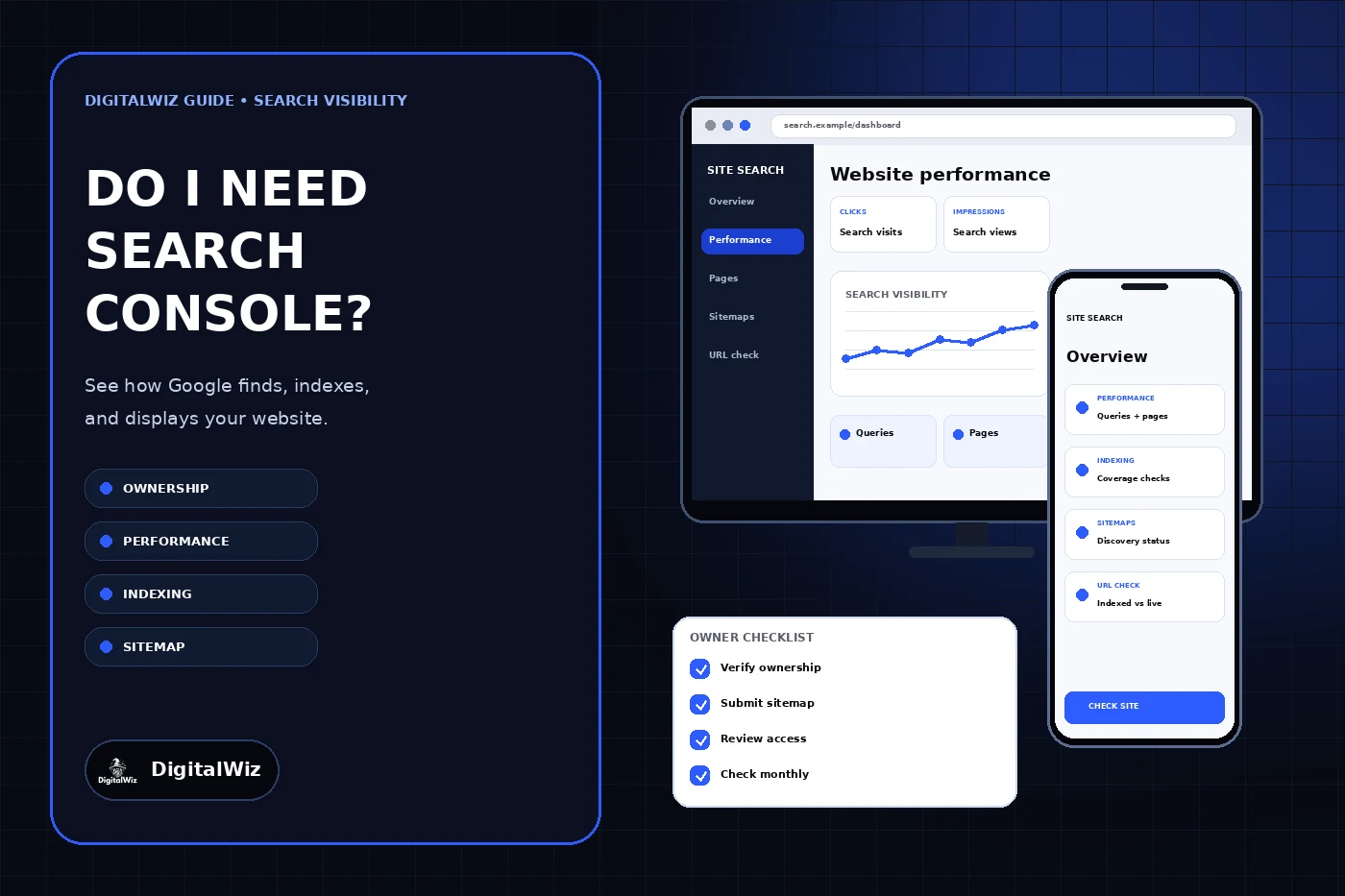
The direct answer
Yes. A small business with a public website should use Google Search Console. It is Google’s own tool for seeing how the site is discovered, crawled, indexed, and shown in Google Search. It can reveal the queries and pages receiving impressions and clicks, indexing problems, sitemap processing, security issues, manual actions, and page-level information from URL Inspection.
Search Console does not improve rankings merely because you created an account. It does not replace website analytics, call tracking, form-delivery testing, or a customer relationship system. Its value is evidence: it shows what Google reports about the site so the owner or agency can investigate the right problem instead of guessing.
Set it up under a Google Account the business controls, keep at least one verified owner the business can recover, and grant named users only the access they need. Submit the current XML sitemap, confirm the preferred domain is covered, and check the account about once a month and after launches, migrations, or important page changes.
The dashboard shown above is an illustrative search-monitoring interface. It is not a Google Search Console screenshot, a client account, ranking result, traffic report, or performance claim.
- Business-controlled verified ownership and recovery
- A property that covers the real public website
- A readable XML sitemap submitted for monitoring
- Monthly checks plus checks after consequential site changes
- Named agency or staff access instead of a shared password
Know what Search Console can and cannot answer
The Performance report shows clicks, impressions, click-through rate, and average position for Google Search. You can group or filter the information by query, page, country, device, search appearance, and date. That helps answer questions such as which pages are being found, which searches expose them, and whether a change is isolated to one page or visible across the property.
The Page indexing and Sitemaps reports help investigate discovery and indexing. URL Inspection compares Google’s indexed record for one URL with an optional live test, including crawl access, fetch status, declared and Google-selected canonicals, rendered resources, and some structured-data information. Google’s Search Console introduction also points site owners to manual actions, security issues, Core Web Vitals, and rich-result reports where applicable.
Do not read every number as a business result. An impression is not a lead, a click is not a booked job, and average position is not a fixed rank that every customer sees. Pair search data with properly configured analytics, call and form attribution, CRM outcomes, and the DigitalWiz guide to tracking where website leads come from.
Create the property under business control
Sign in with a business-controlled Google Account rather than making an employee, freelancer, or agency the only owner. Search Console requires ownership verification before private property data and owner tools are available. Record which account owns the property, which verification method is active, and which recovery methods the business controls.
For a typical business website, a Domain property is useful because it includes the root domain, subdomains, and protocols in one property. Google’s property documentation says Domain properties require DNS verification, while URL-prefix properties cover only the exact protocol and prefix entered and support several verification methods. Choose based on the actual site and the access you can maintain.
DNS verification should be additive: publish the exact verification record Google provides without replacing unrelated website, email, or vendor records. Preserve the existing DNS state before changes and verify that the public website and email still work afterward. If a Domain property is not practical, use an accurate URL-prefix property and remember that HTTPS, HTTP, www, and non-www variants are not interchangeable inside that property type.
- Business controls the primary account and recovery methods.
- Property scope matches the live host and important subdomains.
- Verification token is documented and not removed casually.
- DNS changes preserve unrelated web, mail, and verification records.
- Ownership still works after a vendor or employee leaves.
Give agencies access without giving away ownership
Keep the business as a verified owner and add each agency or staff member as a named user or delegated owner only when their job requires it. Google distinguishes owners, full users, and restricted users. Owners can manage other users and settings; full and restricted users have narrower capabilities.
Review Settings, Users and permissions on a schedule and after any vendor or staffing change. Google’s permissions guidance warns that removing a verified owner from the user list does not automatically remove every verification token. An old token can allow that person to verify again, so ownership cleanup must address both access and the associated token without deleting tokens still needed by other services.
Never solve access by sharing the owner’s password or multifactor code. The DigitalWiz guide to giving a marketing agency access without sharing passwords explains the same named-access pattern across analytics, advertising, hosting, and other marketing systems.
Submit the sitemap and establish a baseline
Open the sitemap URL in a private browser window first. It should return a normal success response without a login, list preferred live URLs, and exclude staging pages, redirects, missing pages, and private tools. Then submit that exact sitemap in the property’s Sitemaps report and confirm that Google can fetch and process it.
A sitemap helps Google discover important URLs and gives you a monitored submission record, but it does not force indexing or guarantee rankings. Google notes that pages can be discovered without a submitted sitemap. Treat submission as one clean discovery signal that should agree with internal links, canonicals, redirects, robots directives, and the actual public site.
Save a baseline after setup: property type, verified owners, submitted sitemap, current indexing patterns, recent search-performance date range, manual-action status, security-issue status, and any known migration or redesign date. The baseline makes later changes easier to interpret without pretending ordinary reporting variation proves a gain or loss.
- Sitemap URL loads publicly and uses the preferred hostname.
- Submitted status is successful and processing errors are reviewed.
- Important pages appear in navigation or contextual internal links too.
- Redirecting, duplicate, private, and missing URLs are not treated as preferred pages.
- The first review records known exceptions instead of chasing a zero-error screen.
Use Performance data for decisions, not vanity reporting
Start with a useful date range and compare like with like. Look first for a meaningful change in clicks or impressions, then narrow by page, query, device, country, and search appearance. The official Performance report documentation explains that chart and table totals can differ because data is aggregated differently, and that search results vary by time, place, device, and search history.
Use the data to form a question. A page with impressions but few clicks may need a clearer title, description, or better match to the search intent. A page losing impressions may have a demand, indexing, competition, or site-change issue. A query appearing on the wrong page may point to overlapping content or unclear internal linking. Investigate the page and the live search result before choosing a fix.
Do not report selected query positions as guaranteed rankings or hide the date, filters, property, and search type. For a broader reporting framework, see what should be in a monthly SEO report. Search Console should support an honest decision, not decorate a dashboard.
Inspect a URL when a page has a specific problem
Use URL Inspection when one page is missing, shows an unexpected canonical, changed recently, or needs a page-level crawl diagnosis. The first result describes Google’s indexed version, which may be older than the current page. A live test checks the current fetch and indexability signals but cannot predict every condition Google uses when selecting or displaying a page.
Google’s URL Inspection documentation says the tool can show discovery, crawl access, fetch status, indexing permission, user-declared canonical, Google-selected canonical, rendered resources, and some enhancements. “URL is on Google” means the page is eligible to appear, not that it will appear for every search. An indexing request is a request to crawl, not a ranking or inclusion guarantee.
Record the exact URL, indexed status, last crawl, canonical values, live-test result, sitemap relationship, and the change you plan to make. Fix the underlying page, redirect, canonical, robots rule, link path, or server response before requesting another crawl. The DigitalWiz guide to checking whether Google indexed a website page walks through that narrower diagnosis.
Use a light monthly and change-day routine
Google says there is no need to sign in every day and suggests checking about monthly or when website content changes. A practical monthly review is short: read new messages, check manual actions and security issues, scan indexing patterns and sitemap status, compare search performance with a relevant prior period, and inspect only the pages that need diagnosis.
Add a change-day review after a redesign, domain move, hostname change, navigation rewrite, large content release, robots or canonical change, or a new platform launch. Confirm the verified property still covers the live site, the sitemap uses final URLs, important pages return the intended status, and analytics and lead tracking still work. Search Console can reveal search symptoms, but it does not replace a technical launch test.
Need Search Console connected to a website, sitemap, reporting, and lead-tracking system the business actually controls? Explore DigitalWiz Search Visibility, run a free BizScore audit, or contact DigitalWiz for a practical review.
- Monthly: messages, security, manual actions, indexing, sitemap, and performance trends.
- After site changes: live host, redirects, canonicals, sitemap, and key URLs.
- Quarterly: verified owners, users, permissions, and obsolete tokens.
- When traffic changes: segment before deciding what caused it.
- When one page fails: inspect indexed and live versions separately.