How Do I Check If Google Has Indexed My Website?
Inspect each important URL in Google Search Console, compare the indexed and live versions, confirm the intended canonical, and use the Page Indexing report to find patterns across the site.
The direct answer
To check one important page, open Google Search Console, choose the property that contains the exact URL, and paste the complete address into URL Inspection. Read the indexed result first. It shows whether Google has indexed that URL, when it last crawled it, whether crawling and indexing were allowed, and which URL Google selected as canonical.
Then run Test Live URL when the page has changed or the indexed result reports a problem. The live test checks the page Google can fetch now; it does not prove that Google has already indexed the new version or that the page will appear for a particular search. Compare the indexed and live results before deciding what to fix.
For the whole site, use the Page Indexing report to find patterns, but prioritize the homepage, core service pages, useful location pages, current campaign destinations that should be searchable, and important articles. The goal is not to force every URL into the index. It is to have the preferred canonical version of every valuable public page discoverable, accessible, and worth indexing.
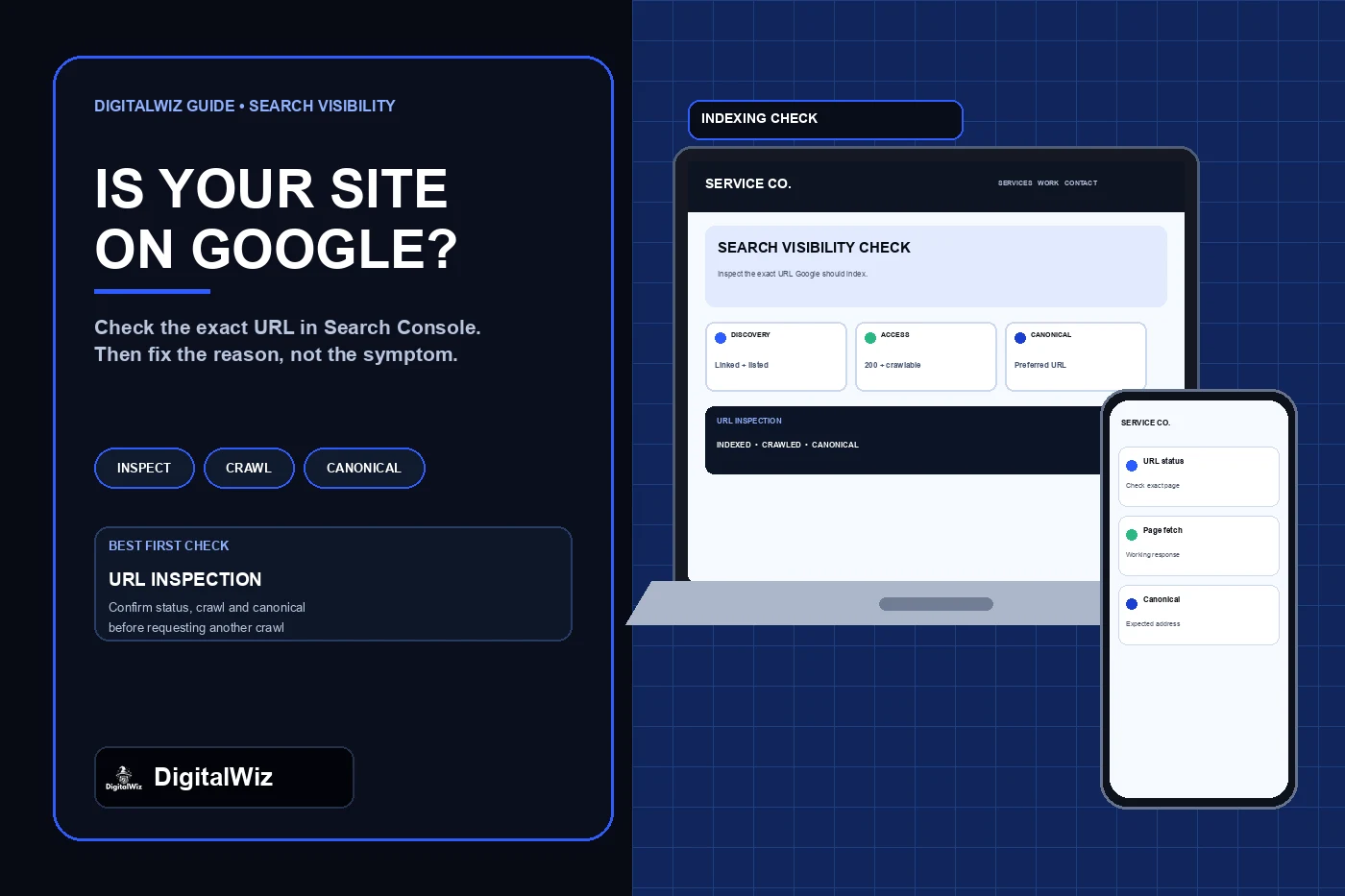
The image above is an illustrative indexing-review interface, not a client Search Console account, indexing result, or ranking claim.
- Specific page: use URL Inspection with the complete canonical URL.
- Recent fix: compare the indexed result with Test Live URL.
- Sitewide pattern: review the Page Indexing report and filter by sitemap.
- Search result check: search the exact URL, but do not treat a broad site: query as a complete inventory.
- Success condition: the important canonical page is indexed; duplicate and retired URLs may correctly remain out.
Start with the exact URL, not a ranking search
Indexing and ranking are different questions. An indexed page is eligible to appear in Google; it is not guaranteed to show for every query, location, device, or user. Searching a service phrase and not seeing the business does not prove the page is absent from the index. It may rank beyond the visible results, Google may prefer another page, or the query may not match the page well.
Copy the final public URL from the browser after redirects finish. Preserve the protocol, hostname, path, and trailing-slash convention used by the site. Inspecting http instead of https, www instead of the preferred host, an old path, or a tracking-parameter version can produce a technically correct answer about the wrong URL.
Search Console requires the inspected URL to belong to the selected property. A Domain property can cover protocols and subdomains, while a URL-prefix property covers only addresses beginning with that prefix. If inspection says the URL is outside the property, change the property or inspect the exact version it includes rather than editing the address until the tool accepts it.
Read the indexed result before running a live test
Google's URL Inspection documentation explains that the default result describes Google's indexed version, not the page as it exists this minute. Record the verdict, last crawl, referring sitemap when shown, page fetch result, whether crawling and indexing were allowed, and the user-declared and Google-selected canonicals.
If the verdict says URL is on Google, the page has been indexed and can be eligible for results. That still does not promise a ranking or rich result. If it says URL is not on Google, expand Page indexing and diagnose the stated reason. Do not jump straight to Request Indexing before checking whether the URL redirects, returns an error, carries noindex, is blocked from crawling, or was treated as a duplicate.
Check the selected canonical carefully. If Google indexed a different equivalent URL, the tested URL may be working as an alternate rather than missing. When that is not the intended outcome, compare content, internal links, redirects, sitemap entries, and canonical tags across both addresses. The DigitalWiz guide to Google showing the wrong page covers that decision in more detail.
- Overall verdict and last crawl date
- Crawl allowed and page fetch result
- Indexing allowed or blocking directive
- User-declared canonical and Google-selected canonical
- Discovery through a sitemap or referring page when reported
Use the live test to verify the page you have now
Run Test Live URL after a developer removes a noindex rule, repairs a server error, changes a redirect, restores missing content, or fixes a rendering problem. A passing live test means the inspection crawler could access and process the current page without a detected critical indexing block. It does not mean the page has already entered the index.
Open the tested-page details when the result is unclear. Review the returned HTML, HTTP response, loaded resources, and rendered screenshot. Confirm that the service description, main heading, links, and other essential content are present in what Google can render—not only after a user action, account login, consent state, or browser feature unavailable to the crawler.
If the indexed result still shows an old problem while the live test passes, the fix may simply be waiting for another crawl. Request indexing once for a high-priority URL after verifying the repair. Repeated requests do not make a broken page indexable and do not guarantee inclusion.
Check the minimum technical requirements in order
Google's technical requirements reduce the first pass to three questions: can Googlebot access the page, does the server return a successful HTTP 200 response, and does the page contain indexable content? Start there before changing titles, adding schema, or publishing another article.
First, open the URL without a login and verify its final status. A redirecting address is not the final indexable page, while 404, 410, and 500-level responses identify different availability problems. Avoid soft 404s: a template that returns 200 but mainly says the service or page does not exist can still be treated as an error.
Second, check robots and indexing directives separately. A robots.txt rule manages crawling; it is not the right tool for reliably keeping a web page out of Google. A noindex meta tag or X-Robots-Tag response header prevents indexing when Google can crawl and read it. Blocking the crawler can keep Google from seeing a noindex rule, so inspect the actual combination instead of assuming either file does both jobs.
Third, confirm that the final page contains a useful, visible answer in rendered HTML, uses a self-consistent canonical, and is not merely a near-duplicate of another page. Technical eligibility is necessary, but it does not require Google to index low-value, repetitive, or duplicate content.
- Publicly accessible to Googlebot
- Final canonical URL returns HTTP 200
- No unintended noindex directive
- Essential content appears in the rendered page
- Page is distinct enough to justify its own canonical URL
Use the Page Indexing report for patterns, not a coverage score
The Page Indexing report groups URLs Google knows about into indexed and not-indexed states and explains common reasons. Filter by a submitted sitemap when you want to focus on the preferred public URLs rather than parameters, redirects, duplicates, and retired addresses Google discovered elsewhere.
Do not aim for 100 percent of every known URL. Redirects, duplicate alternates, intentionally private pages, valid noindex pages, and removed URLs can be correctly absent. Compare each reason with the site plan: Is this a page customers should find? Is it the preferred canonical? Is it linked and listed in the sitemap? Does the reported reason make sense?
Prioritize patterns that affect valuable pages or a complete template. A sudden group of service pages marked noindex, server error, blocked, or duplicate deserves investigation. A handful of old tracking URLs, redirected paths, or filtered variants may require no action. Save example URLs and test representatives from each template before applying a sitewide change.
Make important pages easy to discover
A page cannot be evaluated until Google learns that it exists. Link every important public page from another useful, crawlable page through a normal anchor link. Include preferred canonical URLs in the XML sitemap and remove URLs that redirect, return errors, are intentionally noindex, or should not appear in search.
Google's sitemap guidance describes a sitemap as a discovery signal, not an indexing guarantee. Use absolute preferred URLs and truthful last-modified dates. Submitting the same unchanged sitemap repeatedly does not repair inaccessible, duplicate, or weak pages.
Check mobile navigation and rendered links too. Google uses mobile-first indexing, and a page linked only through a broken desktop-only interaction can be harder to discover. The guide to small-business website navigation explains how hubs, contextual links, breadcrumbs, and mobile menus should expose important destinations.
Use a practical indexing review routine
Create a short list of URLs that represent the site: homepage, each important service template, the main location or service-area path, contact or booking destination, newest useful article, and any page that recently changed. Inspect those URLs after a launch, migration, template change, canonical update, or unexpected search-visibility drop.
Record the exact URL, indexed verdict, last crawl, live-test result, status code, indexing directive, user and Google canonicals, sitemap inclusion, internal-link source, and the action owner. That record separates a discovery delay from a technical block, duplicate choice, content problem, or reporting lag.
Recheck after Google processes the change rather than declaring success from the live test alone. Pair indexing evidence with the customer path: the page should load, answer the question, link to the right service, and provide a working next step. An indexed page with a broken form or unclear offer is still unfinished.
Need help finding which important pages are missing, duplicated, blocked, or disconnected from the customer path? Review DigitalWiz Search Visibility, run a free BizScore audit, or contact DigitalWiz for a practical website and indexing review.
- Inspect the exact preferred URL.
- Compare indexed and live results.
- Fix access, status, directives, canonical, discovery, or content as indicated.
- Request indexing only after the fix passes.
- Recheck the indexed result and the live customer path.