Should Website Links Open in a New Tab?
Keep links in the same tab by default. Open a new tab only when customers genuinely need the original page and the linked resource at the same time—and warn them first.
The direct answer
Most website links should open in the same tab. That keeps navigation predictable, preserves the browser Back button, and lets customers choose for themselves when they want another tab. A link being external, a PDF, or important to the business is not enough reason to force different behavior.
Use a new tab only when the customer needs to keep the current task open while consulting the linked resource. Context-sensitive help beside an unfinished form is a practical example: replacing the form could interrupt the task or risk losing entered information. If the site forces a new tab, tell the customer before activation with visible wording or an understandable icon and an accessible text equivalent.
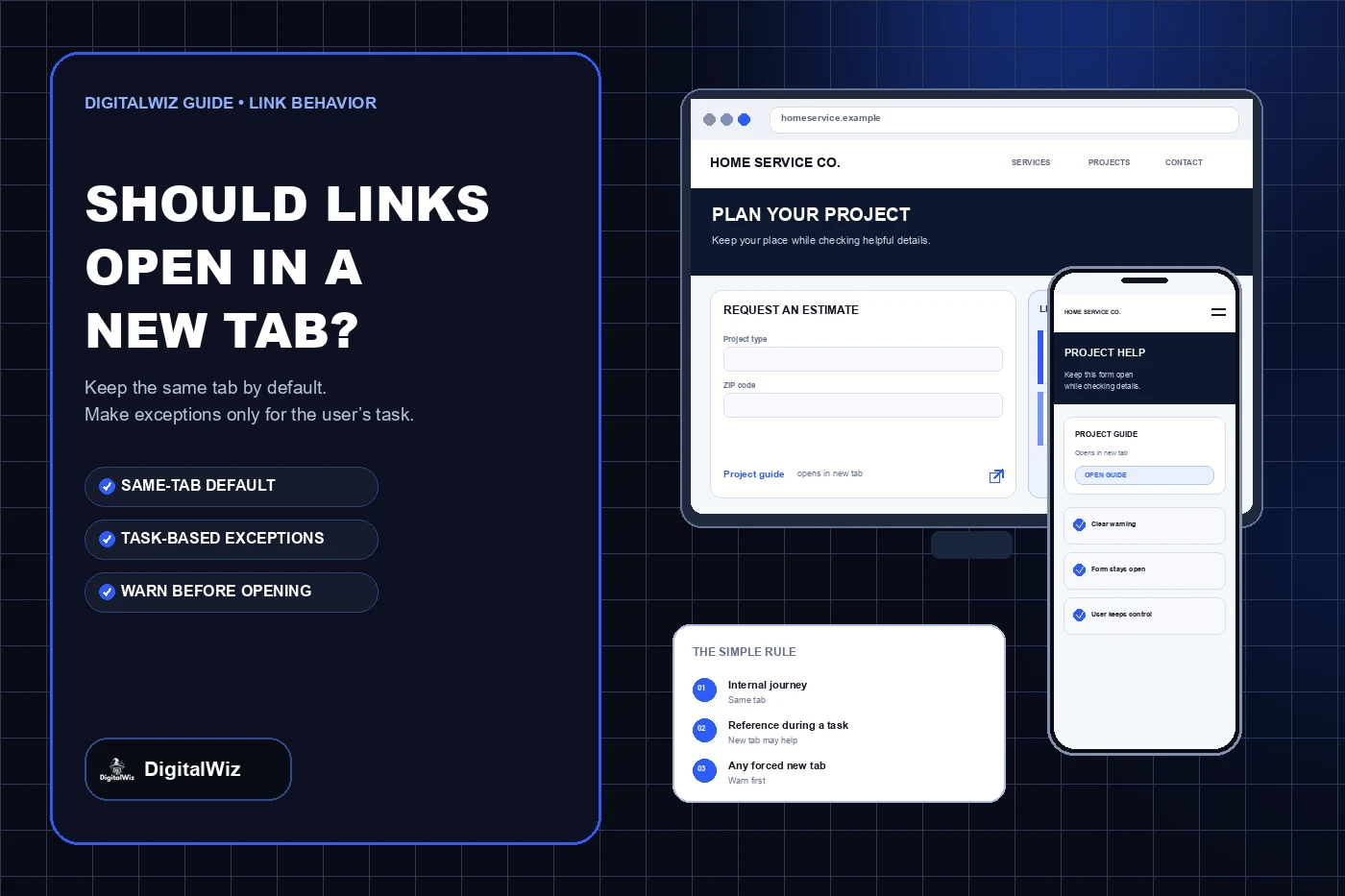
The website interfaces above illustrate a link-behavior decision. They are not a client website, usability test, conversion result, or performance claim.
- Internal navigation: same tab by default.
- External resources: same tab unless the task requires both pages.
- Help used while completing a form: a new tab may be useful.
- Any forced new tab: warn the customer before it opens.
- When evidence is unclear: keep the default and let the customer choose.
Start with the customer task, not the destination
The useful question is not whether a link points to another website. Ask what the customer is doing before the click and what they must do after it. Someone reading a service page and following a financing explanation can normally continue in the same tab, then use Back if needed. Someone entering a long estimate request may benefit from opening measurement instructions separately so the unfinished form remains available.
Nielsen Norman Group's research on browser tabs and windows recommends deciding from context, device, task, and next steps rather than from link type alone. Its general guidance is to use the same tab for most links and reserve another tab or window for situations where people need to compare or combine information while keeping the original task available.
Write the decision as a sentence before implementing it: ‘The customer needs this resource while continuing this form,’ or ‘The customer is moving to the next page in the same journey.’ If the only rationale is keeping visitors on the website, protecting a vanity engagement metric, or treating every external source as a special case, keep the link in the same tab.
Use new tabs for narrow, defensible exceptions
A new tab can support a task when the linked information must remain available alongside an unfinished process. Examples may include detailed help for a particular form field, a document needed to copy information into an application, a preview used while editing content, or a reference that customers must compare with the current page. Even then, test the flow on a phone as well as a desktop; two side-by-side windows are not available in every context.
Downloads and PDFs do not automatically require a new tab. The browser, file type, device, and customer settings can change whether a document opens in the browser, downloads, or launches another application. Decide from the task. If the document is the next destination, same-tab behavior may be clearest. If the customer must refer to it while completing the current page, a clearly announced new tab may help.
Payments, scheduling, maps, review platforms, and other third-party tools also need task-based decisions. Do not force a new tab merely because the domain changes. Check whether the customer is leaving the current journey, needs information from both places, could lose unsaved work, or must return to finish a step. Then make the behavior consistent for comparable links.
Warn customers before a new tab opens
When the website deliberately opens another tab, the warning belongs with the link before activation. Plain wording such as ‘Project guide (opens in new tab)’ is difficult to misunderstand. A familiar external-window icon can support the text, but the icon should have an accessible name or description rather than relying on shape alone.
W3C's advisory G201 technique explains that advance notice helps customers understand why the browser Back button will not return them to the original page. Its examples include warning text and an icon with an equivalent description for assistive technology. The warning should be available to keyboard, touch, and screen-reader users—not only as a mouse-hover tooltip.
Keep the label focused on the destination first. ‘View the measurement guide (opens in new tab)’ is more useful than ‘Click here’ followed by a hidden icon. Reuse one warning pattern throughout the site, and include it in the design system so editors do not invent inconsistent labels or omit the accessible equivalent.
- Name the destination clearly.
- Add visible notice that a new tab will open.
- Provide the same notice to assistive technology.
- Do not hide the warning in hover-only content.
- Use one consistent pattern across the website.
Do not confuse internal, external, and sponsored links
Internal versus external describes where a link goes; it does not determine whether the browser should open another tab. Internal links usually continue the same journey and should stay in the same tab. External sources often work the same way. The customer can choose a new tab when they want one, while the website should force that choice only for a clear task reason.
The rel values attached to a link solve different problems. ‘nofollow,’ ‘sponsored,’ and ‘ugc’ communicate relationships to search engines in particular situations; they do not create a usability reason to open a new tab. ‘noreferrer’ controls referrer information. ‘noopener’ prevents the opened page from receiving an opener reference, although modern browsers generally provide noopener behavior implicitly for links using target=_blank.
MDN's anchor element reference documents target behavior and recommends indicating when a link opens in a new tab or points to a download. Developers should still use the site's established secure-link pattern and test supported browsers rather than assuming that an SEO attribute, external-link icon, or framework component handles every behavior automatically.
Audit the live site instead of changing every link at once
Inventory links by shared component and customer task: header, footer, article body, forms, booking flow, document library, portfolio, map, payment tool, and third-party resources. Record the destination, current behavior, warning, device context, and whether unsaved work could be lost. Start with components that repeat across the whole site, because one template decision may affect hundreds of links.
Test with a keyboard and a phone. Activate each representative link normally, confirm which tab receives focus, try Back, return to the original tab, and verify that form entries remain intact where that matters. Listen to the link with a screen reader or inspect its accessible name. The broader DigitalWiz guide to checking a small-business website for accessibility explains why automated scanning cannot replace these task-based checks.
Avoid a bulk rule that adds target=_blank to every external link. It ignores task context, can create inconsistent warnings, and may change links customers already understand. Fix the shared patterns deliberately, then check page-specific exceptions. Analytics can show where a link is used, but it cannot prove that a surprise tab helped the customer finish the task.
- List representative links from every shared component.
- Identify the customer task before and after each click.
- Confirm whether unsaved work or required context is at risk.
- Test normal activation, Back behavior, keyboard use, and mobile tabs.
- Verify visible and accessible warnings for every exception.
Use this decision rule on the next website review
Keep the link in the same tab unless the customer must use the linked information while preserving the current task. If that exception is real, open the resource separately, warn before activation, preserve any entered data, and test the complete flow on mobile and with a keyboard. If the reason cannot be stated in customer terms, remove the forced new tab.
Review the highest-traffic template, the primary contact or estimate form, and every link that currently opens a new tab. Correct the shared component first, then document the limited exceptions so future editors know when the pattern is appropriate. If the website needs a broader navigation and accessibility review, explore DigitalWiz Website Development or contact DigitalWiz for a practical plan.