Should My Small Business Website Have a Search Bar?
Add site search when customers must find useful content across a large or complex website; for a small service site, clear navigation and direct page links are usually better.
The direct answer
Add a search bar when the website contains enough useful services, products, locations, articles, documents, or support content that customers cannot reliably reach the right answer through navigation alone. If the site has a small set of pages and one clear customer journey, improve the menu, page structure, internal links, and calls to action before adding search.
Site search is not a substitute for organization. It creates another customer path that must index the right content, understand ordinary wording, return useful results, handle empty states, work on phones and keyboards, and stay current as pages change. A search field that routinely returns irrelevant or empty results can make a simple website harder to use.
The decision should follow real customer tasks. List what people need to find, test whether they can reach it through the current navigation, and inspect any available support questions or on-site search terms. Add search only when it solves a repeated finding problem that the business is prepared to maintain.
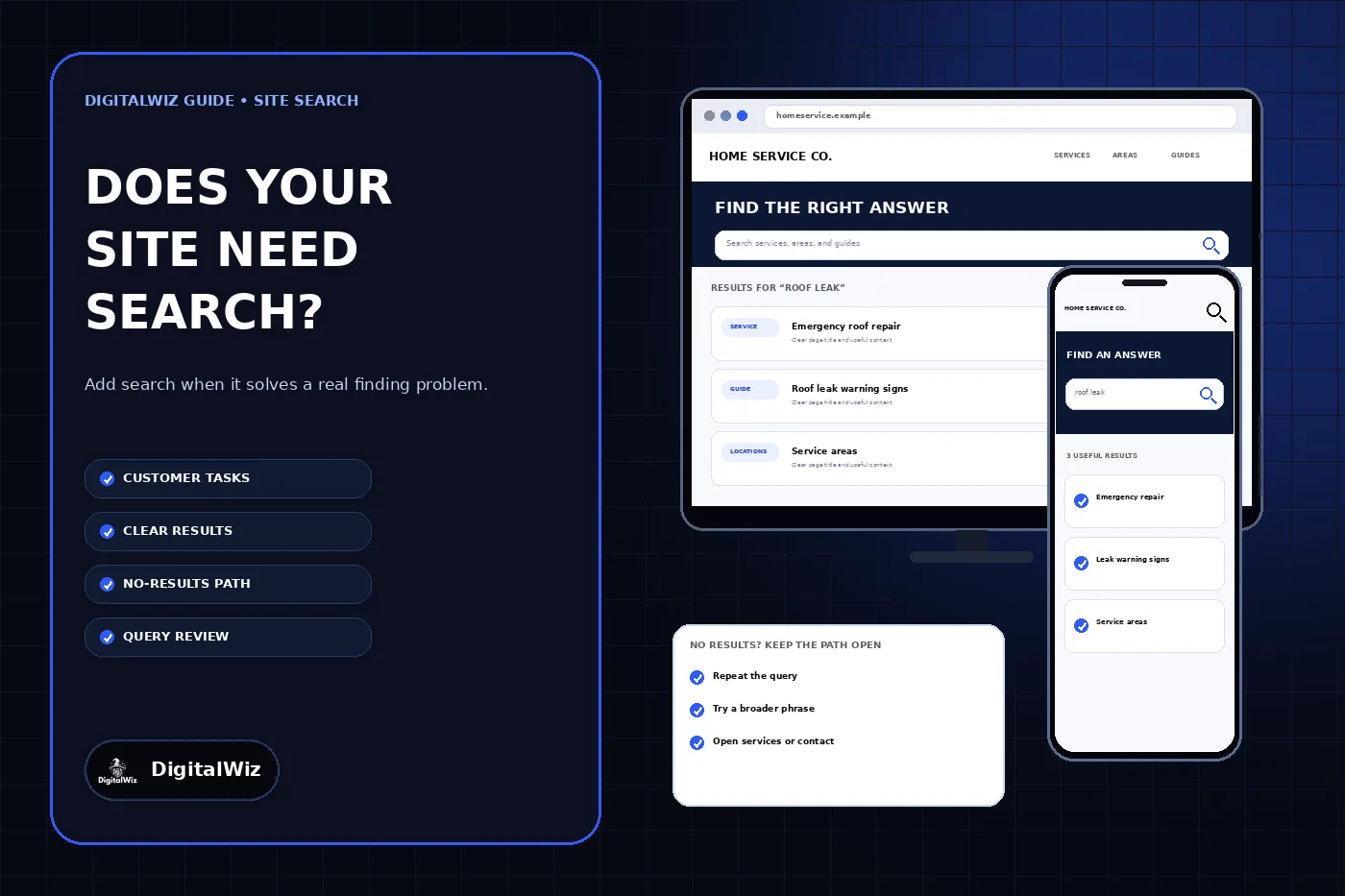
The image above is an illustrative site-search planning interface. It is not a client website, analytics report, usability result, or performance claim.
- Small service site with a few clear pages: improve navigation first.
- Large resource, product, location, or support library: search may be useful.
- Customers know the term or item they need: search can shorten the path.
- Customers do not know what to call the problem: guided navigation may work better.
- No one can review queries and failed results: do not launch an unmaintained search tool.
Decide from customer tasks, not page count alone
A ten-page website can need search if it contains a dense parts catalog or document library. A much larger service website may not need a prominent search field when its audiences, services, and next steps are already easy to scan. Page count is only a warning sign; the stronger evidence is whether a customer can find a specific answer without guessing how the business organized it.
Write down a short set of realistic tasks: find an emergency service, check whether a product is supported, locate a service area, compare two options, retrieve a care guide, or reach a particular policy. Ask someone unfamiliar with the site to complete those tasks on a phone and desktop. Record the first place they look, where they hesitate, the words they use, and whether navigation or search would be the more direct route.
Search is especially useful when visitors arrive with a known item, model, topic, document, or phrase in mind. It is less helpful when they need diagnosis, qualification, or advice before they know the right term. In those cases, clear service categories, symptom-based links, FAQs, comparison pages, and a contact path can guide the decision more honestly than a blank field.
Design a simple search path that works on every device
When search is important, make it recognizable. A visible field in the header can be appropriate on desktop; a clearly labeled control that opens and focuses the field can conserve space on a phone. Nielsen Norman Group's search design guidance warns that an icon by itself is harder to notice on desktop and recommends keeping the field easy to find and submit.
Use a real form with a search input and submit button. Support the Enter key, keyboard focus, screen zoom, and touch targets. Give the control an accessible name, maintain visible focus styles, and keep the field and its action together. W3C's adjacent-button technique shows how a clearly named button next to a field can communicate the field's purpose; a visible label is also a straightforward option.
Do not force people to choose a category before the first search unless that scope is essential and obvious. Search the full useful site by default, then offer relevant filters on the results page when the library justifies them. Keep the entered query visible so the customer can correct it without starting over.
- Search control is easy to locate and has an accessible name.
- One action opens and focuses the field on mobile.
- Enter and the visible submit control both run the query.
- Results retain the query and explain any active filters.
- Back, refresh, and shared result URLs behave predictably.
Make the results page answer the query
A working field is only the start. Each result should show a clear title, a useful excerpt, and enough context to distinguish a service page from an article, location, product, project, or policy. Put the most likely destination first, not merely the page that repeats the query most often. Exclude drafts, duplicate URLs, thin tag pages, expired offers, private records, and content that customers should not reach.
Plan for ordinary language. Customers may search a symptom while the business names a service, use a common abbreviation, misspell a product, or use singular and plural forms. Build a small vocabulary from real calls, form questions, support requests, and search logs, then map important variations to the correct destination. Do not invent a large synonym list before observing what people actually type.
Keep the results honest. A result should link to a page that contains the promised answer. Do not insert a service or sales page above a more relevant result merely because it has a stronger business value. If the best answer does not exist, the query is evidence for a content or navigation decision—not permission to display an unrelated page.
Treat no results as a recovery path
A no-results page should repeat the query, explain that nothing matched, and offer a useful next action. Suggest checking spelling, removing a word, trying a broader phrase, opening a relevant service hub, or contacting the business. Keep the normal navigation available. Never show an empty page, a generic error, or a confident AI-generated answer that is not grounded in approved website content.
Log failed searches without collecting unnecessary personal information. Repeated queries can reveal missing synonyms, buried pages, outdated labels, unsupported requests, or genuine content gaps. Review the pattern rather than reacting to one unusual phrase. When a query exposes a missing business answer, confirm the facts before creating or changing a page.
Also test zero-result behavior deliberately. Search for misspellings, unsupported services, old names, long questions, punctuation, and an empty query. Verify that the page remains readable on mobile, does not leak private content, and always provides a route back to useful pages.
- Repeat the query so the customer can spot an error.
- Offer broader terms or relevant top-level destinations.
- Keep contact help available without pretending every request is supported.
- Record failed terms for a scheduled review.
- Never fabricate an answer when the indexed content has none.
Measure usefulness without collecting more than you need
Measure whether search helps a customer reach a useful page or complete the intended task. Useful signals include searches that lead to a result click, repeated reformulations, no-result queries, exits after search, and the customer action that follows. Do not treat the number of searches as success by itself; heavy use can mean search is valuable, or it can mean the navigation is failing.
If the site already uses Google Analytics with the appropriate consent and privacy controls, GA4 can record the view_search_results event when a results URL contains a configured query parameter. Google's enhanced measurement documentation lists common parameters and the search_term value it can collect. Review whether query text could contain personal or sensitive information before sending it to any analytics provider.
Assign an owner and review interval before launch. The owner should check top and failed queries, inspect actual result quality, remove stale pages, update synonyms, test mobile and keyboard behavior, and verify that tracking still matches the privacy notice and consent setup. If the business cannot maintain that process, a smaller, clearer navigation system is the safer choice.
Use a short launch checklist
Start with customer tasks and a content inventory. Confirm that search solves a repeated finding problem, not a design preference. Build the smallest useful index, make the control visible and accessible, create results and no-results states, and test realistic phrases across the devices customers use.
After launch, compare search behavior with navigation and completed customer actions. Fix the source of recurring failures: rename a confusing page, improve an excerpt, add a missing link, map an observed synonym, remove an obsolete result, or create a new answer only when the business can supply distinct and verified information.
Need help deciding whether your site needs search or simply needs a clearer structure? Review DigitalWiz Website Development, run a free BizScore audit, or contact DigitalWiz for a practical website review.
- Verify a real customer need for site search.
- Repair navigation and internal links first.
- Index only current, public, useful content.
- Test relevant results, no results, accessibility, and mobile behavior.
- Review query patterns and result quality after launch.