Should I Put Video on My Small Business Website?
Use video when motion, sound, or a real demonstration helps a customer understand something that text and photos cannot show as clearly—then keep playback optional, accessible, fast, and supported by useful page copy.
The direct answer
Put video on a small business website when it has one useful job that depends on motion, sound, sequence, or demonstration. A short process walkthrough can show what happens during a service. A product demonstration can reveal movement or scale. A project tour can explain details that are difficult to understand from isolated photos. If the same point is clearer in two sentences and one image, use the simpler format.
Video should support the page rather than become the only way to understand it. Keep the service, scope, important conditions, contact path, and next step available in ordinary text. Let the visitor choose when to play, provide usable controls and captions, protect the first page load, and test the complete experience on a real phone before launch.
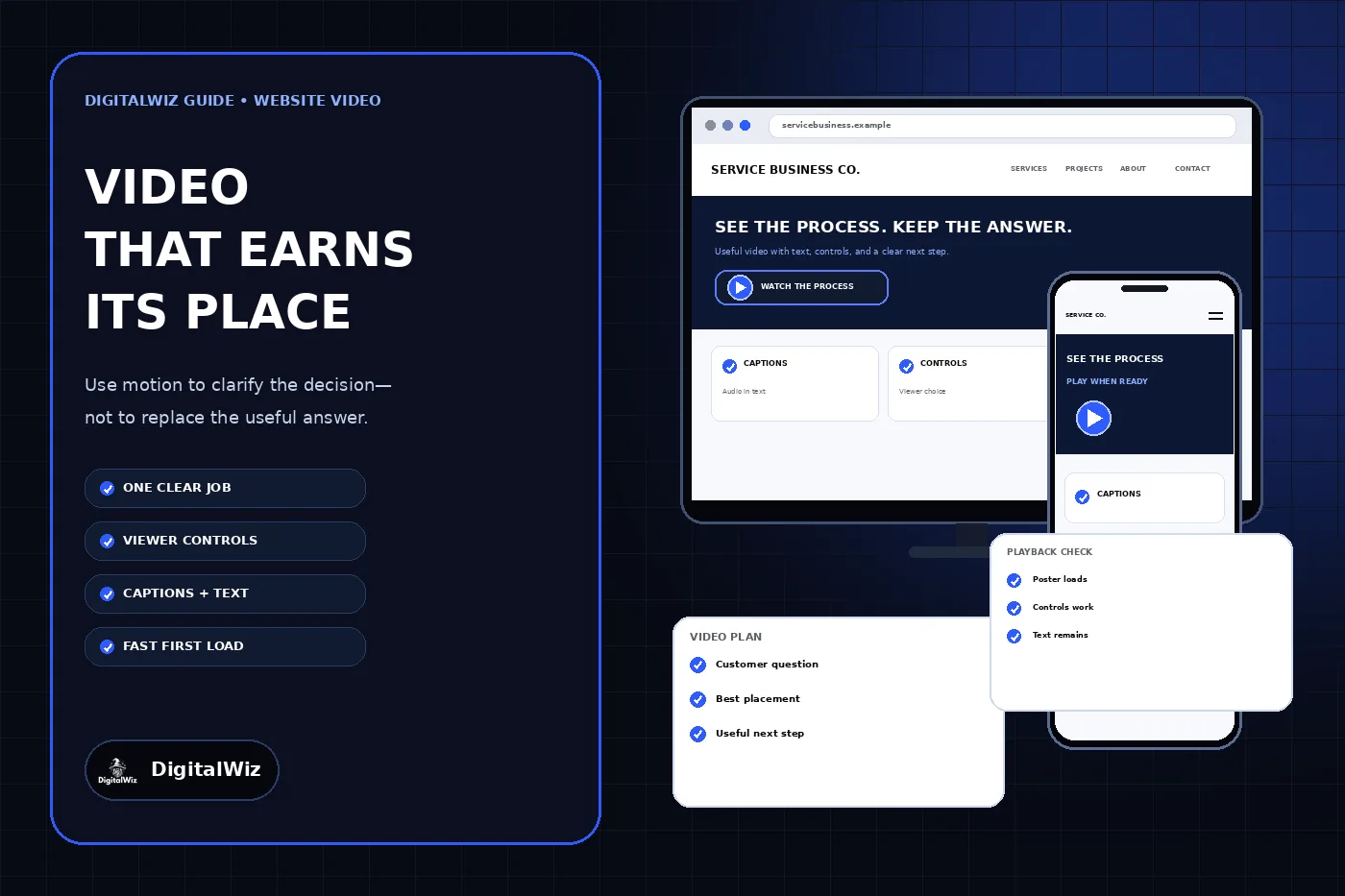
The website screens shown above are illustrative. They are not a client website, completed project, customer testimonial, viewing result, or proof that adding video improves conversions.
- Define the customer question the video will answer.
- Choose the page and point in the decision where the answer is needed.
- Keep essential information and the next action available outside the player.
- Plan captions, transcript, controls, poster image, and loading behavior before filming.
- Measure whether viewers complete the useful task, not only whether playback starts.
Give the video one customer job
Start with a question, not a request to make the homepage feel more dynamic. A service business may need to show how technicians protect a property before work begins, what a consultation includes, how two options operate differently, or how a customer should prepare. Write the answer the customer needs and identify which part genuinely benefits from motion or narration.
Match the video to the page where that question appears. A brief overview can support a homepage after the offer is already clear. A process video usually belongs beside the relevant service steps. A project tour belongs with verified project context. Setup or care instructions belong near the product or customer-support task. Do not make visitors hunt through one general brand film for a specific answer.
Set a realistic boundary for the video. Record the intended audience, question, source material, owner, publication permission, review date, and next action. Remove expired offers, former staff, discontinued products, old service areas, and unsupported claims before filming. A polished video is harder to correct than a paragraph, so facts that can change need an update plan.
Keep the useful answer in the page copy
A visitor may not be able or willing to play video. They may be on a slow connection, in a quiet room, using assistive technology, comparing several providers quickly, or looking for one detail. Put the page’s main answer, scope, qualifications, and next step in readable text instead of requiring playback.
Use the video to add evidence or understanding, not to repeat a generic sales script. Introduce it with a descriptive heading, one sentence explaining what it shows, and its duration when that helps the visitor decide. Place a relevant call to action after the surrounding answer rather than interrupting playback with an unrelated form or covering the player with several buttons.
Keep claims consistent across the narration, on-screen wording, page copy, captions, transcript, metadata, and follow-up route. If the video says an appointment is confirmed but the website only sends a request, the problem is operational—not cosmetic. The same discipline applies to prices, warranties, timelines, service areas, credentials, testimonials, and project descriptions.
Let the visitor control playback
Use a clear poster image and a visible play control for ordinary website videos. Do not start audible media when the page opens. Browser autoplay rules vary, and the MDN autoplay guide explains that audible playback is commonly blocked unless the visitor has interacted with the site or granted permission. The page must still make sense when autoplay does not happen.
If a silent background loop has a real design purpose, remove its audio, keep it short and restrained, provide a way to pause movement when required, and make sure the foreground text remains readable on every frame. A background loop should not carry instructions, proof, prices, or other information that disappears when motion is paused or the video is not downloaded.
Use a player with keyboard-operable play, pause, volume, captions, seeking, playback speed, and full-screen controls where those functions apply. Test visible focus, control labels, zoom, touch targets, orientation changes, and what happens when playback fails. Do not hide a working native player behind custom controls that look cleaner but cannot be operated reliably.
- Playback begins only when the intended visitor action occurs.
- Play, pause, volume, seeking, and caption controls remain usable on mobile and keyboard.
- The player reserves its space instead of shifting the page when it loads.
- A failed or blocked video leaves the page answer and contact path intact.
- No sticky banner, chat control, or cookie interface covers the player controls.
Plan captions and visual alternatives before recording
Accurate captions need the spoken words plus meaningful non-speech audio, synchronized with the video. Review automated captions rather than publishing them untouched; a missed name, number, technical term, or negative word can change the meaning. The W3C audio and video accessibility guidance covers captions, descriptions of important visual information, transcripts, and accessible media players.
Provide important visual information to people who cannot see it. The best approach is often to write the narration so it naturally explains the relevant action, setting, text, or change. When that is not enough, plan audio description or another suitable alternative. Do not rely on silent before-and-after footage, color changes, or on-screen labels without an equivalent explanation.
Place a transcript on the same page or link to it directly beside the player. W3C’s transcript guidance recommends including the speech, meaningful audio, and visual information needed to understand the content. A transcript also lets a visitor scan, search, quote, or revisit one part without replaying the entire video.
Protect speed, privacy, and the first page load
Compress the final video, provide an appropriate format and resolution, and avoid sending a large desktop file to every phone. Give the player explicit dimensions and a stable poster image so the layout does not jump. For a visitor-initiated video, `preload="none"` or `preload="metadata"` can limit the initial download. The web.dev video performance guide explains poster images, preload behavior, lazy loading, formats, and the cost of third-party players.
A third-party embed can load scripts, connections, storage, and player resources before anyone presses play. Consider a lightweight facade: show the poster, title, duration, and play button first, then load the provider only after the visitor chooses to watch. Check the provider’s privacy options, consent requirements, cookies, referrals, related-content behavior, account ownership, and what appears if the video is removed or restricted.
Test the video over a throttled mobile connection and with common content blockers. Compare the page before and after the player is added: initial requests, transferred bytes, main-thread work, Largest Contentful Paint, Interaction to Next Paint, layout shifts, and time until controls respond. If the video makes the primary answer materially slower, move it lower, defer it, simplify it, or remove it.
Use video search features only when the video is the destination
A service page with a supporting clip and a dedicated video watch page serve different purposes. Google’s video SEO guidance says a watch page is a page whose main purpose is showing one video; a product page or article with a complementary video is not automatically a watch page. Create a separate watch URL only when watching that video is a useful destination for the customer.
When a video is meant to be discovered in video search, keep the watch page indexable, embed the video in rendered HTML, use stable player, file, and thumbnail URLs, and provide unique visible title and description information. VideoObject markup or a video sitemap can help describe eligible content, but the metadata must match the real video and visible page. Do not add video schema to a decorative loop or a thumbnail that does not lead to the described media.
When the video only supports an existing service page, optimize the customer experience first. Use a descriptive poster and nearby text, keep the player available to crawlers when appropriate, and avoid creating a thin second URL that repeats the service page merely to hold the same clip.
Measure the customer outcome and maintain the asset
Define success from the video’s job. For an explainer, useful events may include starting, reaching the section that answers the question, opening the transcript, following the related service link, or completing the next step. A play count alone does not show that the viewer understood the answer, became a qualified inquiry, or completed a booking.
Collect the minimum event data needed to improve the experience. Do not send video titles, form values, names, email addresses, phone numbers, project details, or transcript searches into analytics without a justified and reviewed purpose. Respect the site’s consent and privacy configuration, and distinguish a player interaction from an operational result in the business’s inbox, calendar, or CRM.
Test the final page on desktop and mobile with sound on and off, captions on, keyboard navigation, zoom, slow data, blocked third-party scripts, and reduced motion. Verify the poster, controls, transcript, internal links, metadata, consent behavior, fallback state, and CTA. Assign someone to revisit the asset when services, people, prices, policies, products, branding, or hosting accounts change. For help planning video as part of a fast, accessible customer path, talk with DigitalWiz through Website Development or book a strategy call.
- The video answers the named customer question without unsupported claims.
- The page remains complete and actionable without playback.
- Captions, transcript, controls, and visual alternatives match the final edit.
- The initial page load does not fetch unnecessary player or media resources.
- Analytics and operational systems distinguish viewing from a completed business outcome.