Should My Small Business Website Use Popups?
Use a popup only for a specific, timely task that cannot be handled better inline; keep the page available, make dismissal easy, and measure completed outcomes rather than opens or clicks alone.
The direct answer
A small business website should use a popup only when it supports one specific, timely task and a less disruptive page element would not work as well. Good candidates can include a customer-requested form, an important service notice, a saved-cart reminder, or a genuinely relevant offer shown after the visitor has had time to use the page. A newsletter request that appears the moment every visitor arrives is usually better placed inline or in a small banner.
Keep the main content available, show the message at a sensible point, make the close control obvious, remember the dismissal for an appropriate period, and never make the secondary action harder to find than the action the business wants. On a phone, the popup must fit without hiding its heading, fields, terms, or close control behind the browser interface, keyboard, chat widget, or sticky button.
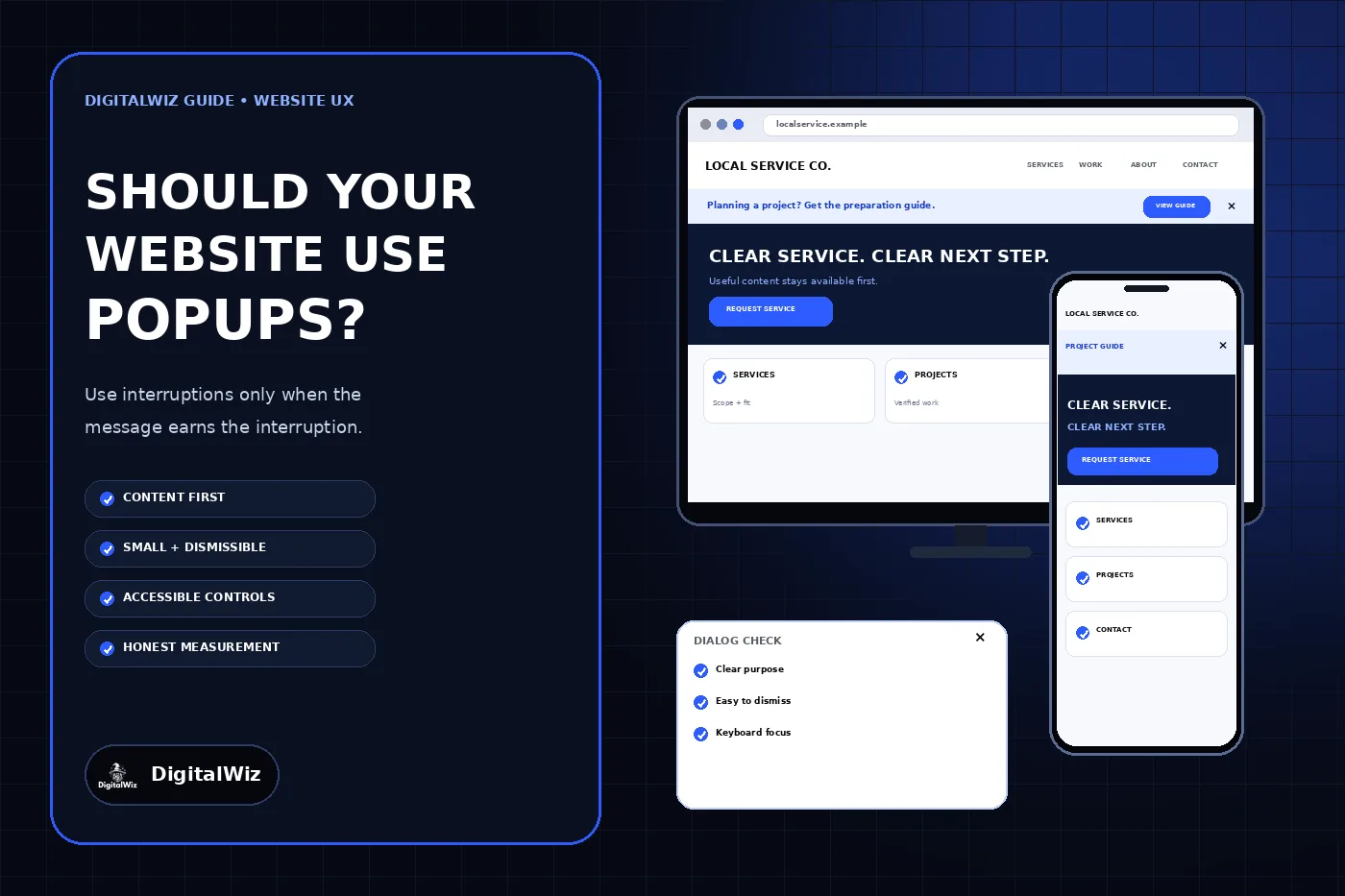
The website interfaces shown above are illustrative. They are not a client website, live campaign, consent record, subscriber count, conversion result, or proof that a popup improved performance.
- Define the one customer task the popup is meant to support.
- Try an inline block or small banner before covering page content.
- Delay or trigger the message from relevant behavior rather than immediate arrival.
- Provide an obvious close action and respect the visitor’s choice.
- Measure the completed customer outcome and any disruption the popup creates.
Start with the job, not the popup tool
Write the intended result before choosing software. A service notice may need to explain a temporary closure. A project guide may need to reach people reading a related service page. A saved-request reminder may need to preserve information the visitor already entered. Each case has a different audience, trigger, message, action, expiration date, and fallback.
Then ask whether the task needs an interruption. Put durable information—services, pricing context, service areas, preparation steps, hours, and contact options—directly on the relevant page. Use an inline callout when the message belongs in the reading flow. Use a compact banner when it must remain visible across several pages. Reserve a dialog for a short task that benefits from temporarily focusing attention.
Do not install a popup simply because a theme, email platform, or marketing plugin offers one. Every added script creates another dependency to load, configure, secure, test, and remove later. Record who owns the message, who receives the submission, what happens when the integration fails, and when the campaign must stop appearing.
Keep search visitors close to the content they chose
A person who opens a search result expects the promised page, not a full-screen request for an email address. Google’s guidance on intrusive interstitials recommends letting users access content without being interrupted and suggests small banners instead of full-page promotional overlays. It also warns against obscuring the entire page or redirecting visitors to a separate page for consent or input unless the interruption is mandatory.
This does not mean every dialog is forbidden. It means the implementation should preserve access to the page and match the importance of the message. A small service alert, a dialog opened by the visitor, and a focused request shown after meaningful engagement are different from an overlay that blocks the first screen on every landing page.
Review the actual mobile arrival from search, ads, email, social links, and direct navigation. A popup that seems modest on a large monitor can consume nearly the entire phone screen. Check whether the visitor can identify the page, read the opening answer, and dismiss the message without zooming or hunting for a faint icon.
Choose timing, targeting, and frequency deliberately
Immediate arrival is the least informed moment to interrupt most visitors. The site does not yet know whether the person found the right service, read the offer, or intends to contact the business. Consider a user-initiated trigger, meaningful scroll depth, completion of a related step, or a return visit instead. Treat exit intent carefully on touch devices, where pointer movement does not map cleanly to departure.
Limit the message to pages where it is relevant. A maintenance-plan prompt may fit a maintenance article but distract from an emergency-service page. A hiring announcement does not belong over an estimate form. Exclude confirmation pages, checkout or booking steps, account areas, policy pages, and other tasks where another interruption can create confusion or a duplicate action.
Set a frequency cap and a suppression period after dismissal or completion. Do not show the same request again on every page view, and do not stack a newsletter popup, cookie control, chat greeting, location prompt, and sticky call button in one viewport. Decide which message wins when several campaigns are eligible, then test that priority on a real phone.
Build the dialog so people can operate and leave it
A modal dialog needs more than a centered box and a dark backdrop. The W3C’s modal dialog pattern calls for focus to move inside when the dialog opens, remain within its controls while it is active, close with Escape, and return to a logical place when it closes. The dialog also needs an accessible name and a visible close or cancel control.
Keep the close control easy to see and activate. WCAG 2.2’s target-size guidance sets a 24-by-24 CSS-pixel minimum target or sufficient spacing under its Level AA criterion, while noting that larger targets can be easier to use. Do not place a tiny low-contrast × against the browser edge or move it when the pointer approaches.
Use a short heading, concise explanation, persistent field labels, clear required status, and a button that names the action. Test keyboard order, visible focus, screen-reader announcements, zoom, narrow screens, long text, validation errors, loading, success, and failure. If closing the dialog loses typed information or changes the page unexpectedly, explain that before the action or redesign the flow.
- The dialog has a clear visible title and programmatic name.
- Keyboard focus enters, stays within, and returns logically after closing.
- Escape and a visible button can dismiss it without submitting.
- Fields, errors, terms, and buttons remain usable on a narrow phone.
- The underlying page cannot be operated accidentally while a true modal is open.
Do not trade clear choice for a higher click rate
The accept action and the decline or close action should say what they do. Avoid guilt-based wording, preselected marketing consent, a bright accept button beside a hidden text link, a false countdown, invented scarcity, or a close icon that is difficult to activate. If an offer has a real deadline, state it accurately and make sure the campaign stops when the deadline passes.
The Federal Trade Commission’s report on dark patterns describes interfaces that obscure, subvert, or impair consumer choice, including hidden terms, confusing privacy choices, false urgency, and designs that steer people toward more data sharing. Evaluate the complete impression created by the wording, color, placement, defaults, and sequence—not only whether each sentence is technically true.
Collect only the information needed for the stated task, explain what happens after submission, and connect the form to an accurate privacy notice and consent process. Email, text messaging, recurring charges, health or financial information, and jurisdiction-specific privacy requirements can create obligations beyond popup design; use qualified legal or compliance guidance for the business’s actual workflow rather than copying another site’s banner.
Measure completed outcomes and disruption
Do not call the popup successful because many people saw it or clicked the first button. Define the business outcome: a confirmed subscription, a qualified request delivered to the right system, a completed booking, or use of an important notice. Track the popup view, close, form start, validation failure, completion, and downstream delivery as separate events.
Watch for harm at the same time. Compare task completion, immediate exits, repeated dismissals, form abandonment, page speed, mobile errors, support complaints, and consent withdrawals. Segment by page and device so a desktop improvement does not hide a poor phone experience. Keep analytics data free of message contents, email addresses, phone numbers, and other submitted personal information.
Test the full production path before launch and after every change to the message, trigger, form provider, consent language, or destination. Confirm that dismissal persists as intended, expired offers disappear, submissions arrive once, success copy is accurate, and the page still works when the popup script fails to load. If the website needs a less intrusive lead path or a careful popup review, DigitalWiz can help through Website Development or a strategy call.
- The intended audience sees the message on the intended pages only.
- The page remains understandable and usable without accepting the offer.
- Dismissal, validation, completion, and failure all behave correctly.
- The completed action reaches the business system once.
- Performance and customer-friction signals are reviewed alongside conversions.