How Do I Write Alt Text for Images on My Business Website?
Describe the purpose an image serves on that page. Use brief contextual alt text for meaningful images, empty alt text for decoration, and the action or destination for linked images.
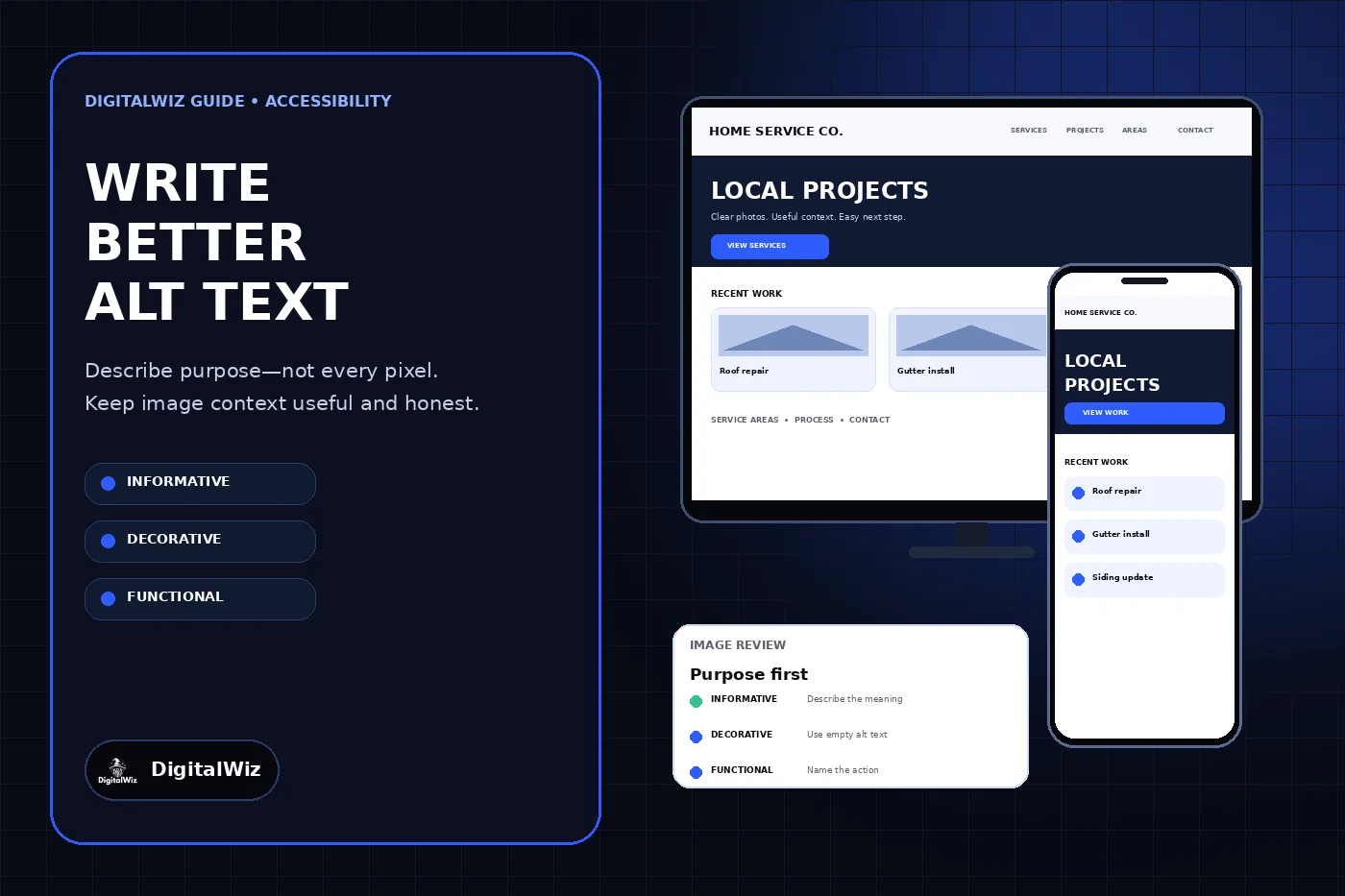
The direct answer
Write alt text around the reason an image is on that specific page. If the image contributes information, describe the essential meaning a person would miss without seeing it. If it is only decoration or repeats nearby text, use an empty alt attribute so a screen reader can skip it. If the image is the only content inside a link or button, describe the destination or action rather than the artwork.
A useful service-page photo might use “Technician inspecting the electrical panel beside a standby generator.” A vague label such as “generator image” leaves out the useful context. A keyword list such as “Charlotte generator installation generator installer backup power” is not an alternative to the image and creates a poor reading experience.
Do not force every image to carry words. The W3C images tutorial distinguishes informative, decorative, functional, text, and complex images because each serves a different purpose. Context decides the answer: the same photograph may need different alt text on a project page, an employee bio, and a decorative homepage banner.
The website, image cards, and review interface shown above are illustrative. They are not a client website, accessibility audit, search result, or performance claim.
- Informative photo or graphic: describe the essential meaning in context.
- Pure decoration or redundant visual: use alt="".
- Linked image or image button: name the destination or action.
- Image containing necessary text: include that text or, preferably, publish it as real page text.
- Complex chart or diagram: provide a short alternative plus the complete information nearby.
Decide what the image does before describing it
Start with one question: what would a visitor miss if this image did not load? If the answer is a service detail, product difference, project condition, person, place, instruction, or result that the page relies on, the image is informative. Describe that meaning briefly and in language that fits the surrounding content.
If the page already states the same information immediately beside the image, repeating the full sentence in alt text can make a screen reader announce it twice. The W3C alt decision tree recommends empty alt text when an image is decorative or redundant to real text nearby. Empty means alt=""—not a missing attribute. A missing attribute can cause assistive technology to announce the filename instead.
For an image used as a control, purpose outranks appearance. A magnifying-glass image that submits a search should be labeled for the search action, not “magnifying glass.” A logo linked to the homepage should identify the organization and destination without repeating visible link text already in the same link.
Use the page context to choose the useful details
Alt text is not a police sketch of every object, color, and background. Include details that explain why the image supports this page. On a roofing service page, roof material and the visible work may matter. On an About page, the person’s name and role may matter. On a project page, the project type and completed feature may matter when those facts are verified.
For example, “Completed standing-seam metal roof on a two-story home” can be useful on a metal-roofing project page. “Large gray house under a blue sky with trees and windows” describes visible pixels but misses the page purpose. Do not add a city, product, customer name, project result, or completed-work claim unless the image and business record support it.
Avoid opening with “image of” or “picture of” in ordinary cases because assistive technology already identifies an image. Name the medium when it changes the meaning, such as “Floor plan,” “Bar chart,” “Illustration,” or “Digital rendering.” Keep the language natural rather than trying to satisfy a keyword density rule.
- Project photo: verified service, feature, stage, or outcome relevant to the page.
- Team photo: the person or group and role when identification matters.
- Product photo: the product type and distinguishing detail being discussed.
- Instructional image: the action, position, or sequence the visitor needs.
- Decorative texture, flourish, or repeated stock scene: empty alt text.
Write for accessibility first and let SEO follow
Google says alt text helps it understand an image and how the image relates to the page. Its image SEO guidance also warns against filling alt attributes with keywords. Useful image context, relevant nearby copy, descriptive filenames, crawlable image elements, quality, and performance work together; alt text is not a shortcut for a thin page.
Write the clearest alternative for the person using the page. A genuine service term can appear when it accurately identifies the image, but location and keyword variations do not belong in every attribute. “Heat pump outdoor unit installed on a level pad beside a brick home” is useful. “HVAC Charlotte HVAC company AC repair heating repair Charlotte NC” is not.
Google also uses an image’s surrounding page content to understand it. Place meaningful images near the section they support, keep visible captions factual, and use a filename that identifies the asset without becoming a keyword string. The article on title tags and meta descriptions follows the same principle: describe the real page instead of manufacturing search phrases.
Handle text, charts, and before-and-after images carefully
When an image contains essential words that are not available as real text, the alternative needs to carry those words. Better yet, put important hours, prices, offers, instructions, and contact details in the HTML so people can resize, translate, copy, search, and hear them reliably. Do not rely on a promotional graphic as the only source of important business information.
A chart, floor plan, process diagram, or infographic may need more than one short attribute can reasonably hold. Give it a concise label that states the main point, then provide the full data, sequence, or explanation in adjacent text or a linked text version. The Section 508 alternative-text guide recommends describing important trends and relationships while moving detailed data into a longer accessible equivalent when needed.
For before-and-after images, state only what is visibly and factually established. Identify which image is before and which is after, the verified work shown, and any detail needed to interpret the comparison. Do not turn the alt text into an invented customer story, damage diagnosis, location claim, or guaranteed result.
Audit the rendered page, not only the media library
A media library field does not prove the final page is accessible. Inspect the rendered HTML and test the page at desktop and mobile widths. Confirm every meaningful image has an appropriate alternative, decorative images are intentionally skipped, linked images have understandable names, and lazy-loaded images still expose the same accessible information.
Read the page in sequence with a screen reader or accessibility tree when possible. Listen for filenames, duplicated captions, keyword lists, unexplained controls, and long descriptions that interrupt the article. Automated scans can find missing attributes and some empty alternatives, but they cannot decide whether the words communicate the correct purpose in context.
Keep the image itself usable too. Compress and size it appropriately, preserve clear responsive crops, avoid baking critical words into graphics, and verify that the page does not shift or overflow while media loads. The DigitalWiz guide to small-business website speed explains why image quality and page performance need to be reviewed together.
- Check the live image and surrounding copy together.
- Distinguish an intentionally empty alt attribute from a missing one.
- Confirm controls and linked images announce their purpose.
- Test representative pages with assistive technology, not only a crawler.
- Recheck after CMS, theme, gallery, or component changes.
Use a simple editing test for every image
First classify the image: informative, decorative, functional, text-bearing, or complex. Second, finish this sentence: “Without seeing this image, a person needs to know ___.” Third, write only that useful information. Fourth, compare it with the nearby text and remove repetition. Fifth, test the rendered result in the real page order.
Do not impose one rigid character limit. Brief is usually better, but the correct length depends on the information the image contributes. A service photo may need a short phrase; a meaningful diagram needs a longer text equivalent outside the attribute. If you cannot explain why the image exists, it may be decoration or it may not belong on the page.
Need a page-by-page review of image accessibility, content structure, speed, and search context? Run the free BizScore audit or contact DigitalWiz. DigitalWiz can identify which image and page issues should be fixed first without turning every alt attribute into a keyword list.